
In-depth Sublimation Screen Printing Issues and Professional Solutions
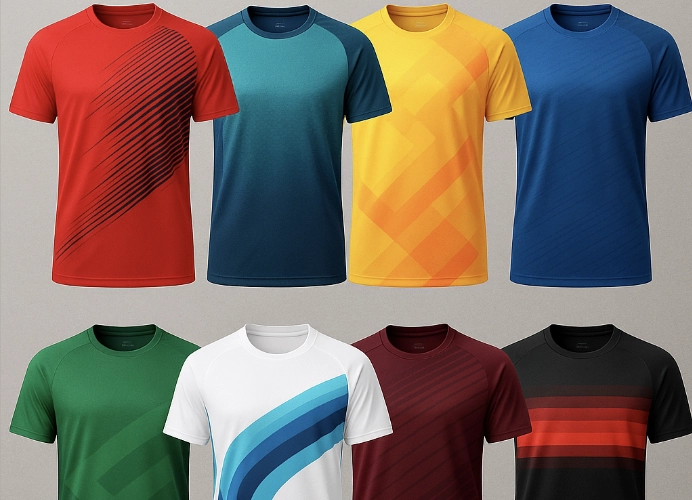
Sublimation screening is a highly popular printing technique currently, known for its vibrant and sharp colors, flexibility in producing small quantities, and durability since the ink penetrates directly into the fabric or material rather than remaining on the surface as with other screening methods. However, working with sublimation systems can encounter common issues that may affect the quality of the output. This article delves into these problems and provides detailed solutions to help you produce the highest quality sublimation work.

Understanding Basic Sublimation Systems
First, let’s briefly understand how sublimation works. Sublimation printing uses special ink called sublimation ink, which transitions directly from a solid to a gas state when exposed to high heat, bypassing the liquid phase (sublimation process). This gaseous ink then permeates the polyester fibers of the fabric or the polymer coating on various materials such as glass, ceramics, and metal. As the temperature drops, the ink returns to a solid state and is permanently embedded in the material, resulting in vivid prints that do not fade and are resistant to washing and wear.
Common Issues in Sublimation Screening and Solutions
Although sublimation offers several advantages, there are potential issues that can arise during the production process, mostly due to three key factors: temperature, time, and pressure, as well as the quality of materials (ink, paper, and workpieces).
1. Faded/Dull Colors
Causes:
Inappropriate heat or time settings: Low temperatures or insufficient time can prevent the ink from fully vaporizing, resulting in poor color penetration into the material. Conversely, excessively high temperatures or too much time can cause the colors to burn or fade.
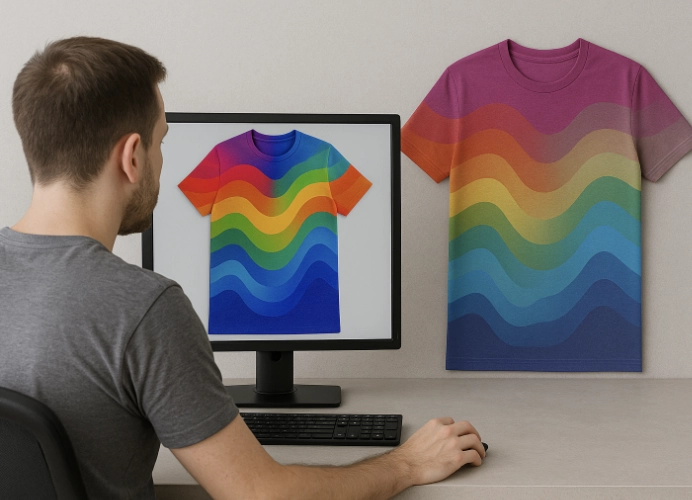
Low-quality sublimation ink: Poor-quality ink provides less concentrated pigment, leading to dull prints.
Inappropriate sublimation paper: Low-quality sublimation paper may absorb too much ink or release it poorly.
Inappropriate material: Materials that do not have sufficient polyester content (such as 100% cotton) or lack polymer coating will not allow the ink to adhere properly.
Incorrect ICC Profile: Incorrect color profile (ICC Profile) settings in the printing software can cause color distortion. The ICC Profile does not match the printer / paper / fabric, and the printer has not been calibrated.
Solutions:
Adjust temperature and time: Experiment with adjusting the heat and time settings according to the manufacturer’s recommendations for the ink, paper, and material being used.
Use high-quality ink and paper: Invest in sublimation ink and paper from reputable manufacturers.
Check the material: Use 100% polyester fabric or fabric with high polyester content (at least 65%) for textile work, and materials with polymer coating for hard materials.
Install and use the correct ICC Profile: Ensure that the ICC Profile matches your ink and printer, and use it correctly in the printing settings. Update drivers and software such as Photoshop, CorelDraw, or RIP Software to the latest version.
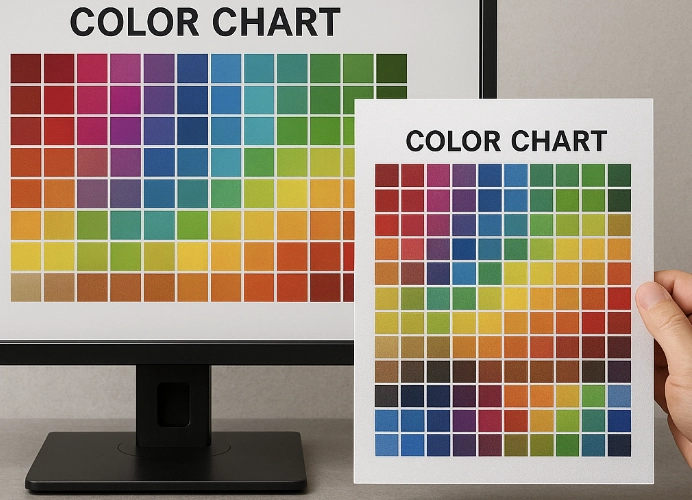
Print a color chart and adjust the color values in the original file to match the actual results.
2. Print Ghosting/Blurring Issues
Causes:
Paper movement during heat pressing: This is the primary cause of ghosting. When sublimation paper moves slightly when the press opens or closes, or while the material is still hot, the evaporated ink will re-bleed in misaligned positions.
Pulling paper from fabric too quickly
Moisture in the material: Residual moisture in the fabric or material turns into steam when heated, pushing the ink out of place and causing blurring or ghosting.
Uneven heat press pressure: Uneven pressure across the heating plate may cause the paper to shift or the ink to transfer unevenly.
Paper sticking to the material: After pressing, the paper may stick firmly to the material, causing tearing or shifting when removed.
Solutions:
Use heat-resistant tape: Secure the sublimation paper to the item with heat-resistant tape to prevent movement. After the heat press is done, carefully remove the paper without pulling too hard.
Pre-pressing: Press the item without paper for 5-10 seconds to remove moisture and reduce wrinkles before placing the printed paper.
Open and close the heat press gently: Open and close the heat press slowly to reduce vibrations that may cause paper movement.
Check heat press pressure: Adjust the pressure of the heat press to be consistent across the entire plate. If there are areas with uneven pressure, the machine may need to be adjusted or repaired.
Use release material: Place parchment paper or a Teflon sheet between the printed paper and the heat press plate to prevent ink from smearing and to make the paper easier to remove.
3. Color Inaccuracy
Causes:
Incorrect or Mismatched ICC Profile: This is the primary cause of color inaccuracy. The color profile settings may not match the printer, ink, and paper being used.
Incorrect Color Settings in Design Software: The color mode settings in design software (such as RGB vs CMYK) may not align with the sublimation ink mode.
Different Ink Quality: Each brand of sublimation ink has different pigment compositions, leading to varied color representation.
Inappropriate Temperature/Time/Pressure: These factors affect the evaporation of ink and the color appearance on the final product.
Uncalibrated Monitor: A computer screen that has not been calibrated may display inaccurate colors.
Solutions:
Use Correct and Calibrated ICC Profiles: Install the ICC profile recommended by the ink or printer manufacturer and use a monitor calibration program to ensure the screen colors are as close to the actual colors as possible.
Understand Color Modes: Generally, sublimation design uses the RGB color mode, and the printer converts it to CMYK. Since sublimation ink works similarly to CMYK, it is important to understand how color modes work.
Test Print and Adjust: Print a color chart and test it on the material you are using. Compare it with the screen to identify differences and adjust the print settings accordingly.
Use High-Quality Ink and Paper: Using high-quality materials helps reduce color variations.
4. Banding or Small Dots on the Print
Causes:
Clogged Print Heads: The primary cause of banding is clogged print heads in inkjet printers, leading to uneven ink flow.
Low Ink Levels: Low ink levels in cartridges can cause uneven ink flow.
Humidity in the Air or Material: Small dots on prints often result from moisture that evaporates and pushes ink, creating uneven spots.
Poor Ink or Paper Quality: Inks with coarse pigments or paper that cannot absorb ink evenly can cause issues.
Dust or Fibers on the Heat Press: Dust or small fibers on the heat press plate can cause dark spots on the final product.
Solutions:
Clean Print Heads: Regularly clean the print heads according to the printer’s instructions. If the print heads are severely clogged, a detailed cleaning or repair may be necessary.
Check Ink Levels: Ensure there is enough ink in the cartridges.
Pre-Press: Press blank material to remove moisture.
Control Environment: Keep paper and materials away from moisture and control the temperature and humidity in the workspace.
Clean Heat Press: Clean the heat press plate before each use to remove dust and debris.
Use High-Quality Ink and Paper: Choose high-quality inks with fine pigments and well-coated paper.
5. Paper Edge Press Marks/Creasing
Causes:
Excessive roller pressure: Excessive pressure may cause the paper edges to press against the material, resulting in permanent marks.
Sharp paper edges: Paper edges that are cut too sharply.
Lack of protective material: No foam pad or appropriate Teflon sheet is used to prevent marks.
Solutions:
Reduce roller pressure: Adjust the pressure to an appropriate level, not too tight, just enough to transfer the ink.
Tear the paper edges (Tear Edges): Instead of cutting the paper edges straight, tear them gently by hand or use pinking shears to make the edges less sharp and reduce the chance of marks.
Use a foam pad or Teflon sheet: Place a soft foam pad under the workpiece or use a Teflon sheet between the workpiece and the heating plate to help distribute pressure and prevent marks.
Cut the paper slightly smaller than the workpiece: If possible, cut the printing paper slightly smaller than the workpiece to avoid protruding paper edges.
6. Ink Bleed Through to the Back of the Fabric
Causes:
Using fabric that is too thin.
Using excessive pressure and temperature.
Solutions:
Place a sheet of paper underneath the fabric before applying heat.
Gradually reduce pressure or temperature by 5°C until the right balance is found.
Use thicker quality fabric, such as Polyester 200 GSM or higher.
- Misaligned Printing / Off-Center Printing
Causes:
Incorrect placement of paper before pressing.
Not using a template or reference point.
Solutions:
Print a template on an A4 sheet first and use it as a reference.
Use heat-resistant tape at the corners to secure the position.
For large quantities, it is recommended to invest in a Jig or positioning mold.
Other Key Factors Affecting Sublimation Quality
In addition to immediate issues, there are fundamental factors to consider for high-quality sublimation work.
Quality of the printer: Printers specifically designed for sublimation provide better results.
Maintenance of the printer: Regularly clean the print head and maintain the printer according to the manual.
Control of humidity and temperature in the room: High humidity can negatively affect ink and paper.
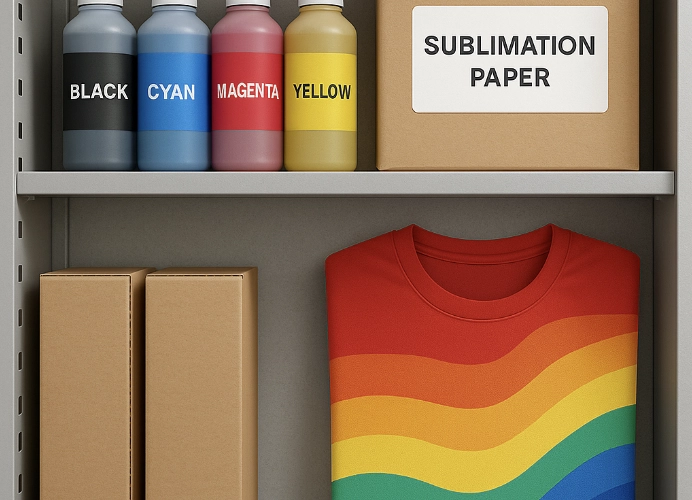
Storage of materials: Store ink, paper, and printing materials in a dry place, away from direct sunlight. Sublimation printing technology is excellent for creating high-quality printed works, but success requires an understanding of the process and related factors. Most issues can be resolved by checking and adjusting key factors such as temperature, time, pressure, material quality, and maintenance. By paying attention to these details, you can produce beautiful, sharp, and durable sublimation work that meets customer needs.
Ready to Print Custom DTF with Screen168 Bangkok?
Single pieces to bulk wholesale. Free artwork file check and instant online pricing 24/7.
🚀 View Sizes, Prices & Order Online→